![LOGO-WHITE-1.png]](https://support.radaro.com.au/hs-fs/hubfs/LOGO-WHITE-1.png?width=150&height=50&name=LOGO-WHITE-1.png)
Key Steps
Step 1: Access the Search Bar
-
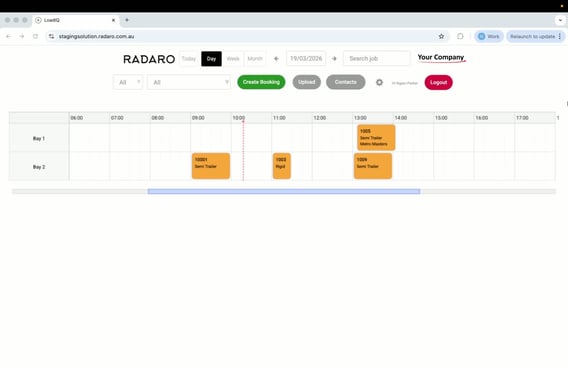
Locate the search bar in LoadIQ - it is at the top right of the page.
-
Click inside the search bar to activate it.
Step 2: Begin Typing the SAP Order ID Number
-
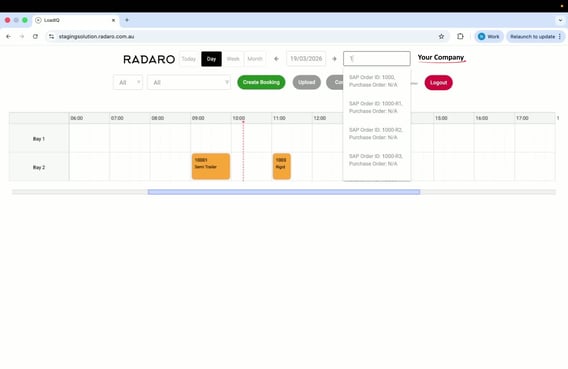
Start typing the job number (e.g., “10”).
-
This action will display a list of SAP order IDs associated with active jobs in the system.
Step 3: Select the Relevant Booking From the List or Complete Typing the Full SAP Order ID
-
You can either:
-
Select one of the displayed jobs directly.
-
Continue typing the full order ID number (e.g., “1009”).
-
Step 4: View Job Information
-
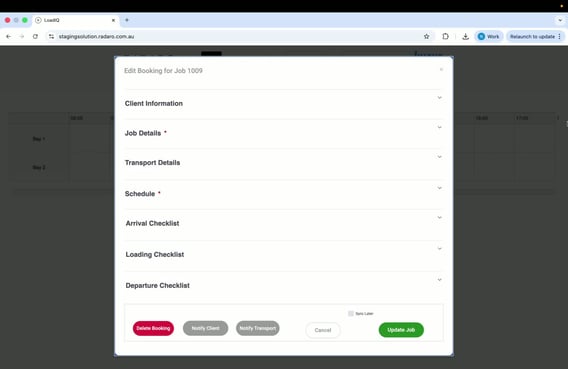
After selecting the job, all related information will be displayed.
-
Alternatively, if you hit return after typing the job number, you will still need to select the job to view its details.
Cautionary Notes
-
The search functionality is limited to searching by SAP Order ID number only.
-
Ensure that you are typing the correct job number to avoid confusion.
Tips for Efficiency
-
Familiarise yourself with common job numbers to speed up the search process.
-
Use the autocomplete feature by starting to type the job number to quickly find the desired job.