![LOGO-WHITE-1.png]](https://support.radaro.com.au/hs-fs/hubfs/LOGO-WHITE-1.png?width=150&height=50&name=LOGO-WHITE-1.png)
Key Steps
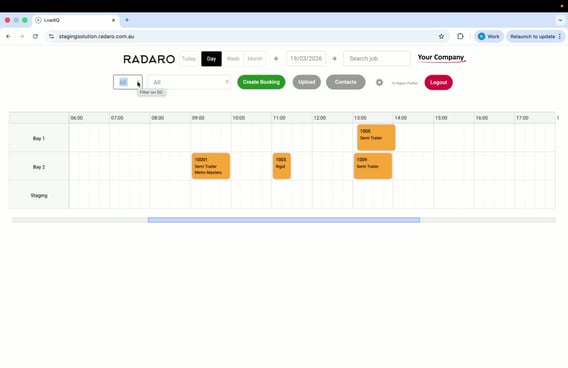
Step 1: Access the Distribution Centre Filter
-
Locate the filter on the upper left part of the screen.
Step 2: Select Relevant Distribution Centres
-
Click on the down arrow.
-
Choose either “All” or select one or multiple locations.
-
Ensure the filter is set correctly to reflect your selection.
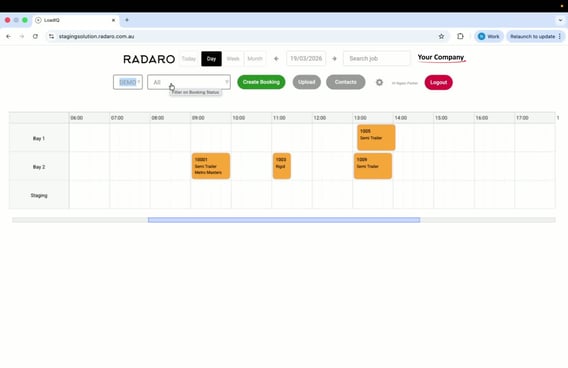
Step 3: Accessing the Booking Status Filter
-
Locate the second filter for booking statuses.
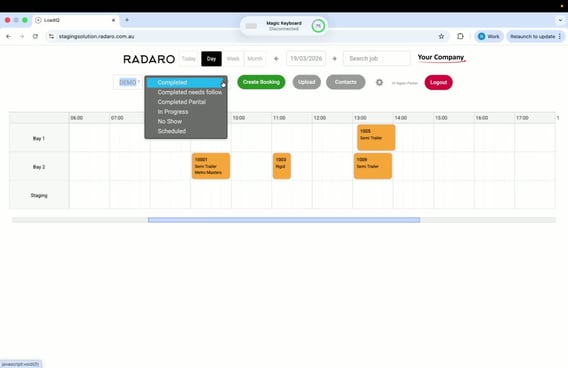
Step 4: Select Booking Statuses
-
Click on the down arrow next to the booking statuses filter.
-
Review the available statuses:
-
Completed
-
Completed Needs Follow-Up
-
Completed Partial
-
In Progress
-
No Show
-
Scheduled
-
-
Select multiple statuses as needed to refine your view.
Cautionary Notes
-
Always double-check your filter selections to avoid missing important data.
Tips for Efficiency
-
Familiarise yourself with the available statuses to quickly select the relevant ones.
-
Regularly update your filter settings based on your ongoing needs to streamline your workflow.