![LOGO-WHITE-1.png]](https://support.radaro.com.au/hs-fs/hubfs/LOGO-WHITE-1.png?width=150&height=50&name=LOGO-WHITE-1.png)
To ensure the correct job times are communicated to customers, see below for details on how to create, route and read job reports in Radaro portals outside your time zone.
Note:
-
When your Radaro portal is created, the time zone is set to match the operational location or the portal which automatically takes into consideration day light savings.
-
When you log in to a Radaro portal, the job times displayed will match the time zone matching your location/PC time settings.
-
For example, if you are based in Melbourne and you login to a Perth portal, while the job will have been created and showing a job deadline of 5pm for Perth based users, Melbourne users will see a deadline of 7pm or 8am (dependant on the time of the year)
The following will use the example of an employee (John), based in Melbourne, creating and planning jobs for WA during daylight savings (3 hr time difference).
Creating Jobs
-
While based in Melbourne, creating a job within a Perth portal, you will need to convert the time accordingly.
-
Perth based customer would like delivery in the afternoon.
-
Enter the job with a “Deliver After” time of 15:00 (noon in Perth) and a “Deliver Before” time of 20:00 (5pm in Perth).
Viewing Delivery Windows in a Radaro portal outside the Delivery Time Zone
-
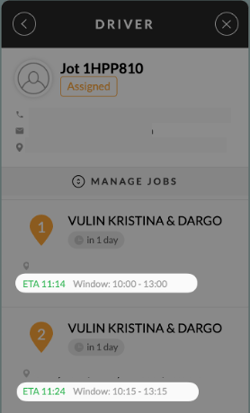
The windows displayed on this screen are displayed in John’s local time - VIC time. Meaning, the “actual” delivery window based on the local time in WA for customer number 1 is 7am – 10am and customer 2, 7.15am- 10.15am.
-
A manual conversion WILL be required when viewing windows on this screen.
-
The ETA represents the estimated time of arrival at this customer’s location. In this example, the ETA is 8:14am Perth time and 8.24am for the second customer.
Creating a Route Optimisation
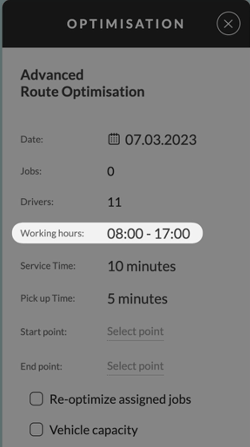
The “Date” and ”Working Hours” components entered when optimising in a portal, outside your time zone will be based on the same time zone as the deliveries are in.
In this example, John is based in VIC and is creating an optimisation for WA. He enters the “Working Hours” as it would be in WA. NO manual time zone conversion is required.
Once an optimisation is completed, another way to discover the “Working Hours” that were used when creating the optimisation, is to view this within the optimisation screen.
Route Optimisation Export
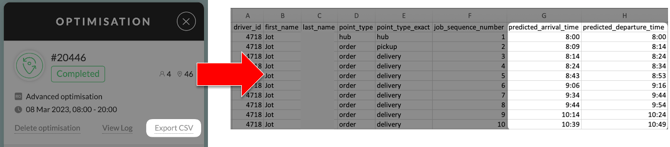
The “Export CSV” function in an optimisation will allow you to export the planned run sheet outlining all jobs and predicted times.
All times displayed in this sheet will be based on the portals time zone.
In this example, John is based in VIC and is exporting an optimisation for WA. He views the predicted arrival and departure times as it would be in WA. NO manual time zone conversion is required.
Times Displayed for Completed Jobs
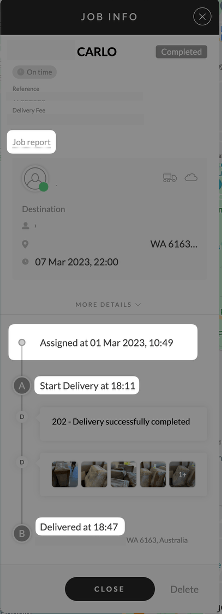
Head to the “Jobs” Tab and filter jobs by “Completed” to view the jobs log.
All the time stamps on the job log are displayed in John’s local time for VIC.
This means, the actual “delivered at” time is 3:47pm WA time.
A manual conversion WILL be required when viewing times on this screen.
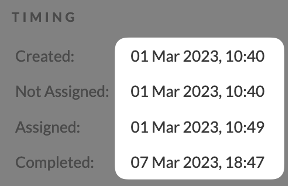
When accessing the job report, the same rule applies, so a manual conversion will be needed.
If you need assistance regarding time zones or are interested in learning more about how Radaro can be integrated into your operations, contact your Radaro Account Manager or a member of the Radaro team via support@radaro.com.