![LOGO-WHITE-1.png]](https://support.radaro.com.au/hs-fs/hubfs/LOGO-WHITE-1.png?width=150&height=50&name=LOGO-WHITE-1.png)
Key Steps
Step 1: Open the Booking
-
Access the booking system.
-
Locate and open the specific job for which you want to send a notification.
Step 2: Expand Client Information
-
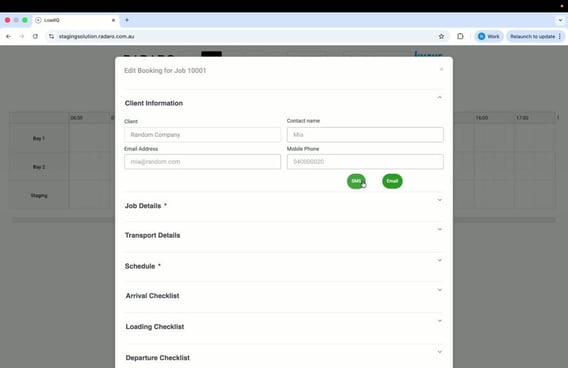
In the booking details, find the “Client Information” section.
-
Expand this section to view notification options.
-
Click on the “SMS” option to send a text message to the client.
-
The SMS notification includes:
-
Job Purchase Order Number
-
Scheduled pickup date and time
-
Loading location
-
Transport company name
-
Note: message templates can be customised.
-
-
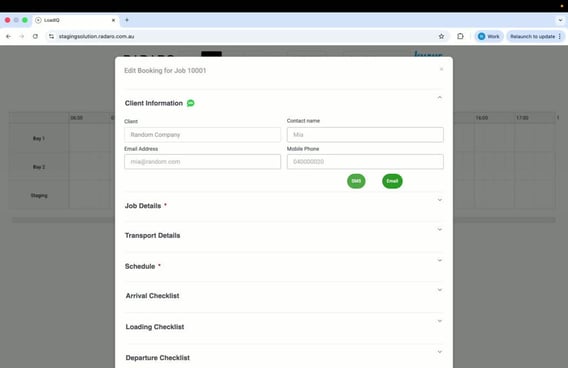
Confirm that a green icon appears next to the client information, indicating the SMS was successfully sent.
-
Hover over icons to see the timestamp.
Step 3: Send Email Notification to Client
-
Click on the “Email” option to send an email to the client.
-
The email notification includes:
-
Job Purchase Order Number
-
Scheduled pickup date and time
-
Loading location
-
Transport company name
-
Note: message templates can be customised.
-
-
Verify that an icon appears confirming the email was sent.
Step 4: Expand “Transport Details” section to send a SMS message
-
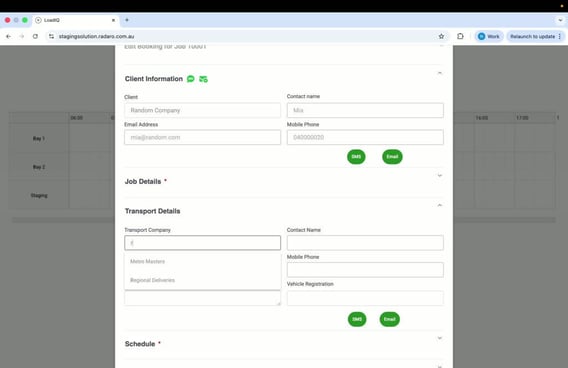
Expand the “Transport Details” section in the booking details.
-
Click on the “SMS” option under the transportation company section to send a text message.
-
The SMS notification includes:
-
Job Purchase Order Number
-
Scheduled pickup date and time
-
Loading location
-
Transport company name
-
Note: message templates can be customised.
-
-
Ensure a green icon appears, indicating the SMS was successfully sent.
Step 5: Send Email Notification to Transport Company
-
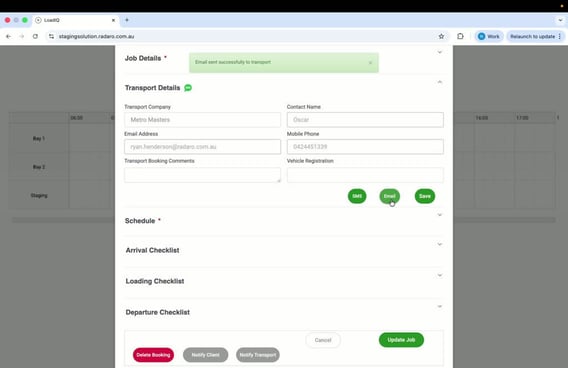
Expand the “Transport Details” section in the booking details.
-
Click on the “Email” option to send an email to the transport company.
-
The email notification includes:
-
Job Purchase Order Number
-
Scheduled pickup date and time
-
Loading location
-
Transport company name
-
Note: message templates can be customised.
-
-
Confirm that an icon appears, indicating the email was sent.
Step 6: Verify Notification Details
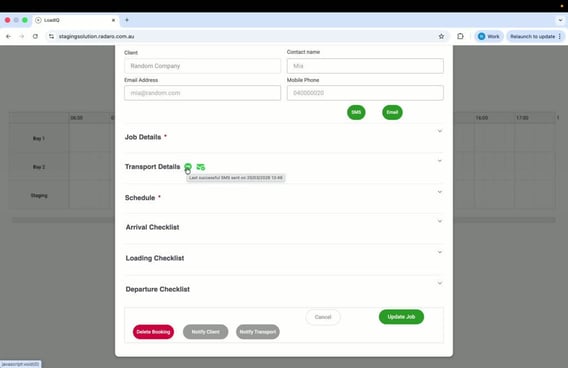
-
To verify the exact time the most recent SMS or email message was sent, hover over the icons.
Cautionary Notes
-
Ensure that all client and transportation company information is accurate before sending notifications.
Tips for Efficiency
-
Familiarise yourself with the booking system to navigate quickly.
-
Update pre-defined message templates if required.
-
Regularly update contact information for clients and transportation companies to ensure successful communication.