![LOGO-WHITE-1.png]](https://support.radaro.com.au/hs-fs/hubfs/LOGO-WHITE-1.png?width=150&height=50&name=LOGO-WHITE-1.png)
From time to time, a Driver may need to search jobs within the Driver App. One way to do this is via the filter option.
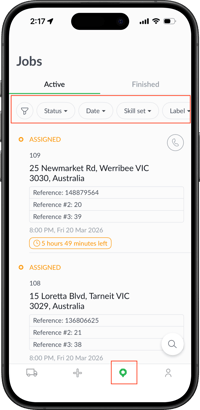
From the Jobs page, you will see several options (filters) across the top.
These filters will vary based on your accounts configuration and consist of:
-
-
-
-
-
-
-
-
Filter icon
-
Status
-
Date
-
Skill Set
-
Label
-
Sub Brand
- Reset All
-
-
-
-
-
-
-
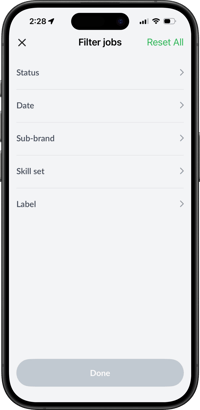
Filter Icon - Clicking this icon will provide your filter options in a list view.
Status - allows you to view jobs based on their status.
Radaro Job Statuses include: 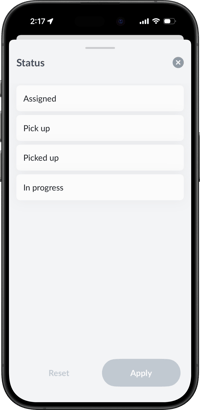
-
-
-
-
-
-
-
Unassinged - Bright green
-
-
-
-
-
-
-
-
-
-
-
-
-
Assigned - Amber
- Pick up - Blue
- Picked up - Purple
-
In Progress - Red
-
-
-
-
-
-
-
-
-
-
-
-
-
Completed - Grey
-
Failed - Black
-
-
-
-
-
-
Date - view past or upcoming jobs via the date filter.
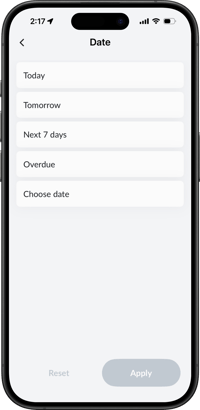
If the additional features such as Skill Sets, Labels and Sub Brands are active on your accounts, you will be able to filter via these options as well.
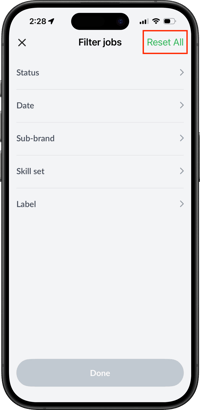
Resetting Filters - Once you've found the desired job, it is recommend to Reset Filters so all jobs are visible.