![LOGO-WHITE-1.png]](https://support.radaro.com.au/hs-fs/hubfs/LOGO-WHITE-1.png?width=150&height=50&name=LOGO-WHITE-1.png)
- At warehouse (pickup) only
- On delivery only
- Scan at pick up and delivery
Regardless of the configuration, if you are required to scan barcodes, you will be prompted during the pick up/ delivery process and the barcode(s) will be visible to you under the Job Details section of the Radaro Driver App.
How to Scan Items/Barcodes
Radaro utilises your device camera to scan barcodes.
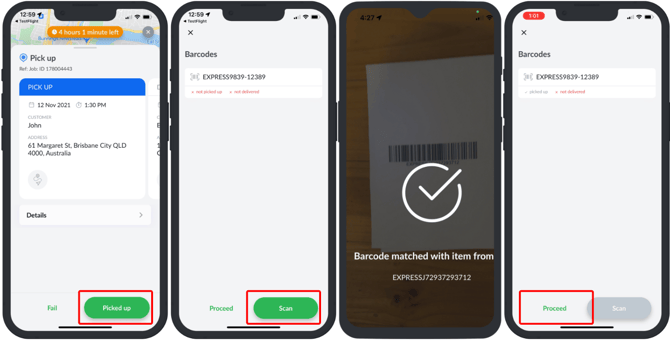
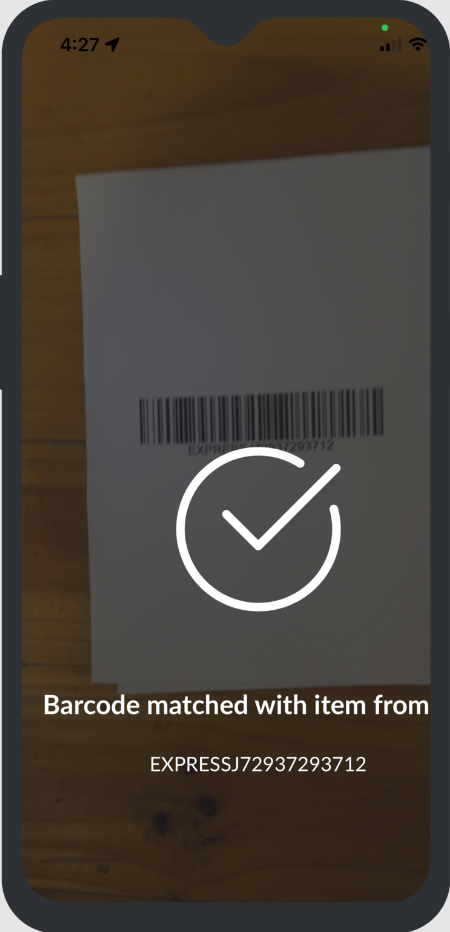
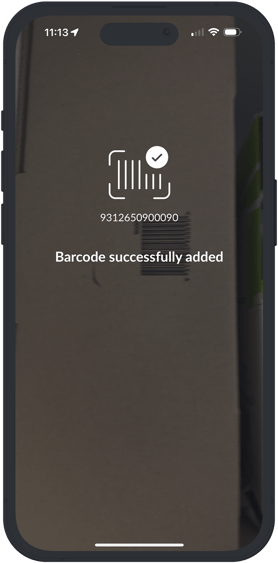
Simply hover your phone over the barcode. Once the barcode has been registered, you will see a positive notification advising the Barcode successfully added.
Details on how to scan at each stage can be viewed below:
Scanning at Pick-up
If you are required to pick-up goods from one location prior to delivery to another address, pressing "Start" will direct you to the pick-up location.
- Once you have arrived at the pick-up site, you can verify the goods to be collected via the Details and see the barcodes to be scanned.
- Select "Picked Up" and you will be prompted to scan the barcodes of the goods you are collecting.
- Once all goods are scanned, you will be prompted to Pause or Proceed.
- Select Pause if you have other pick-up or deliveries to do prior to delivering the picked up items.
Scanning Off Goods
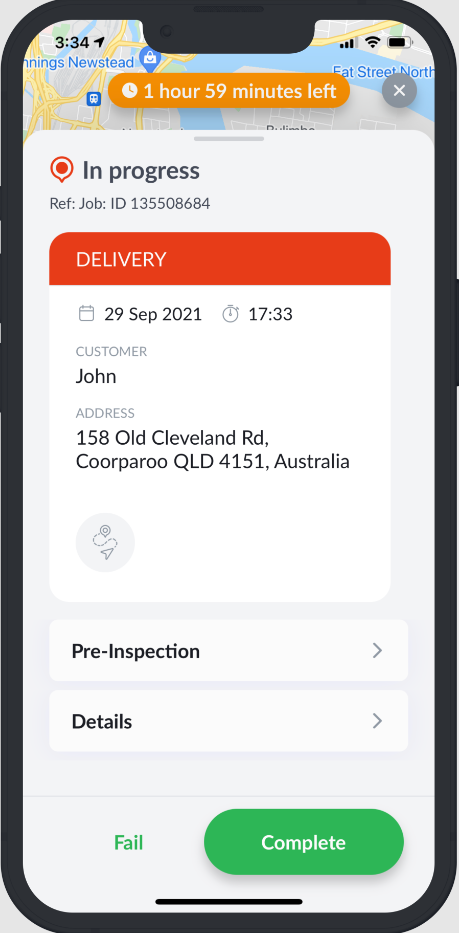
- Start the job and navigate to the customer as normal.
- Once you have arrived on-site, press "Complete".
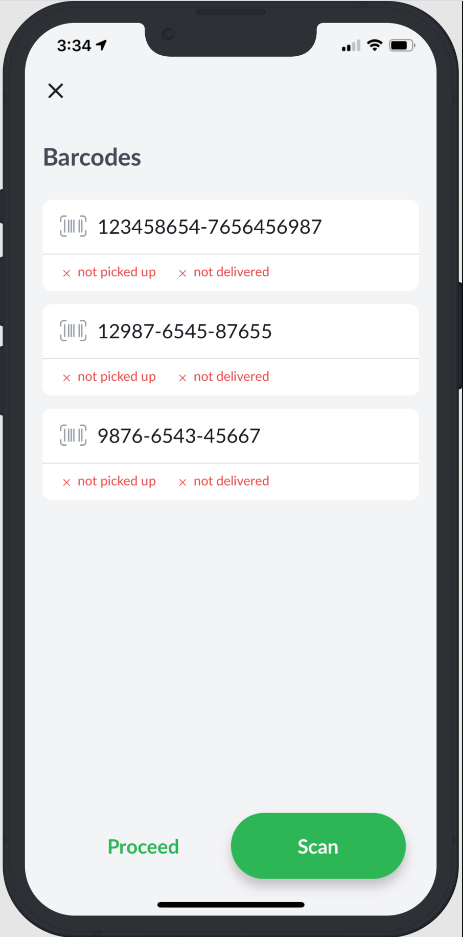
- You will be prompted to scan the goods you are delivering.
-
Once all barcodes are scanned, you will be directed to the job completion screen to complete the job.
If you are delivering multiple items and do not scan all items, you will be prompted that there are “more codes to scan”.
If you scan an incorrect item, you will be alerted the barcode is incorrect.
 |
 |
 |
Bulk Scanning on Goods
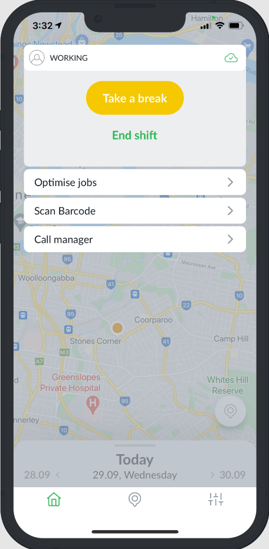
Use the bulk Scan Barcode feature to scan on all goods at the point of vehicle loading.
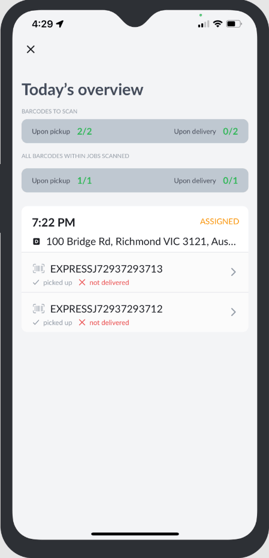
Once you have scanned all the barcodes, tapping the "Barcodes to scan today" will present you with an overview of the barcodes scanned and the jobs they are related to for review.
Once you have reviewed and are satisfied with the Scanning Overview, tap the "X" located at the top left of the screen and begin completing jobs as normal.
  |
In-field Barcode Creation (optional feature)
If activated, you can add Barcodes to jobs if they have not already been provided.
- At the point of collection or delivery, select Details then click the barcode scan icon.
- Upon scanning, the code will be instantly added to the job.
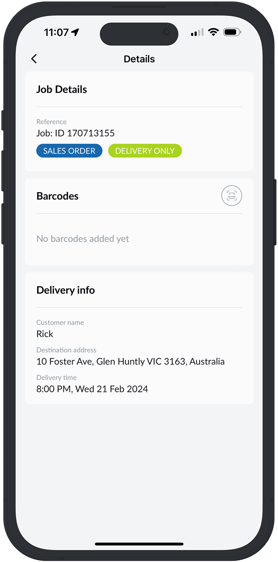
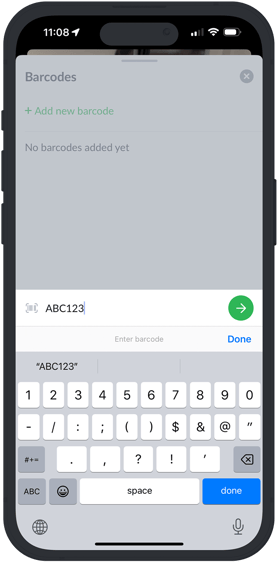
If you have trouble scanning the barcode, you also have the option to manually enter the barcode.
- From barcodes press "+Add new barcode"
- Use the device keyboard to enter the details