![LOGO-WHITE-1.png]](https://support.radaro.com.au/hs-fs/hubfs/LOGO-WHITE-1.png?width=150&height=50&name=LOGO-WHITE-1.png)
If you are not seeing text or the signature box displayed correctly within the Radaro App, your phone settings may need to be reset.
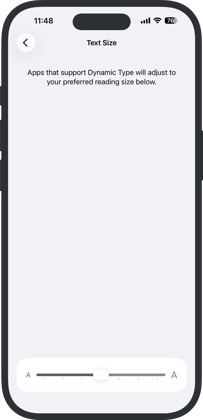
1. Set the text size
- Go to Settings > Display & Brightness.
- Tap Text Size.
- Drag the slider left or right to change the text size ensuring the slider is left in the centre.
2. Turn off bold text
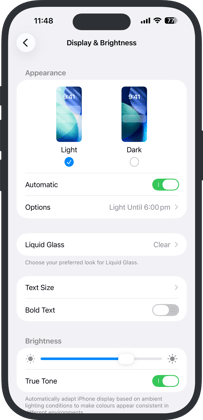
- Go to Settings > Display & Brightness
- Turn off Bold Text
3. Screen magnification
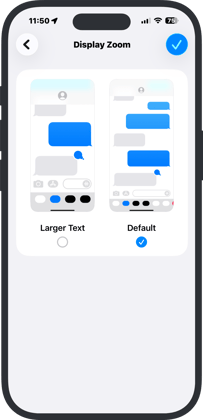
- Go to Settings > Display & Brightness
- Tap Display Zoom
- Select Default
- Select Done button
If the above steps do not resolve any unexpected behaviour with the Radaro App, a Device Reset may be required.
- Go to Settings on your iPhone.
- Select General, scroll down and select "Transfer or Reset iPhone", then select Reset.
- WARNING: Do not select "Erase All Content and Settings" as this will erase all your content (see Erase iPhone).
- Choose an option:
- Reset All Settings (recommended): All settings —including network settings, the keyboard dictionary, location settings, privacy settings, and Apple Pay cards—are removed or reset to their defaults. No data or media are deleted.
- Reset Network Settings: All network settings are removed. In addition, the device name assigned in Settings > General > About is reset to “iPhone,” and manually trusted certificates (such as for websites) are changed to untrusted.
- Reset Location & Privacy: Resets the location services and privacy settings to their defaults.
Reset All Settings is the recommended options, however should be used as a last resort.