![LOGO-WHITE-1.png]](https://support.radaro.com.au/hs-fs/hubfs/LOGO-WHITE-1.png?width=150&height=50&name=LOGO-WHITE-1.png)
With increasing demand for detailed product information to facilitate real-time invoicing solutions and bulk stock adjustments, Inventory Control allows you to indicate exactly what items have been delivered and the actual quantity.
Completing the Inventory Control details, are part of the standard job completion process. 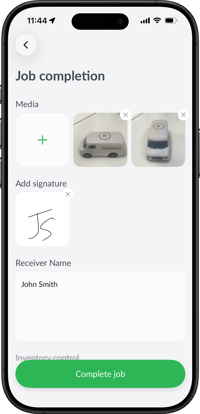
When ready to Complete the job, select the green Complete button and complete each Job Completion section:
-
Add the appropriate Success code/s
Use the free text field to add any notes pertaining to the success codes chosen -
Tap Media to capture photos/video of the delivery
-
Tap Add Signature for the customer to sign
-
Enter the required details in the Dynamic POD field (Receiver Name in the images)
Review and Complete the Inventory Control section
Tap the Inventory Control section to see the items within the delivery.
-
Tap Summary to a simplified list of the items
-
Tap on a specific line item for more details including product dimensions, weight if provided.
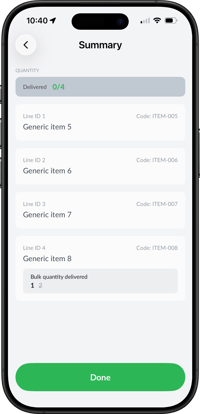
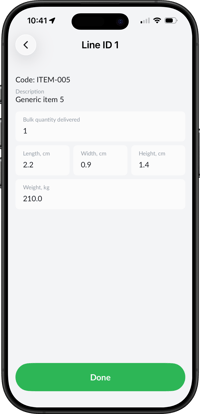
Completing Inventory Control
Delivered Items (full quantity)
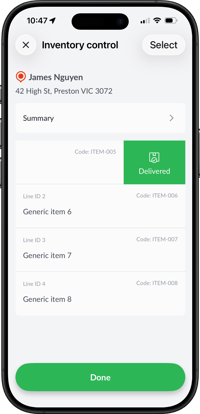
- If there are no changes and the item was fully delivered, swipe right on the line item, then tap the green Delivered icon.
- You may be prompted to add a Reason Code, if required enter the appropriate details
- Tap the green Done button to confirm.
Delivered Items (quantity change)
-
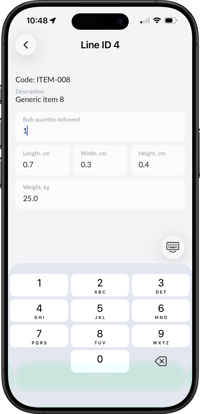
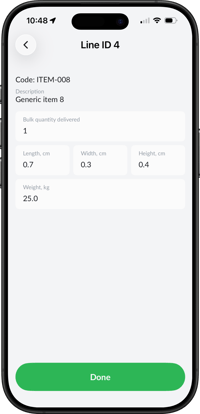
If for some reason, you cannot delivery the full quantity originally indicated, tap on the line item in question to view the details.
-
Tap on Bulk quantity delivered and adjust the quantity to reflect the accurate number and tap the green Done button to confirm.
-
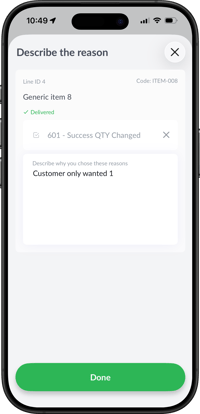
Now swipe left on that line item to mark the item as delivered, and select the appropriate reason code (ie quantity changed).
- Tap the green Done button to confirm.
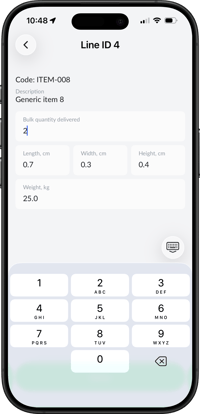
 .
. 
Not Delivered Items
-
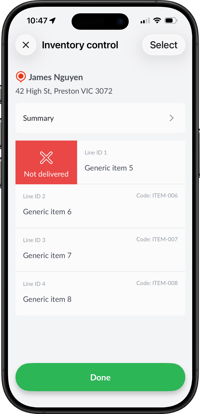
If an item cannot be delivered, swipe right on the line item and tap the Not Delivered.
-
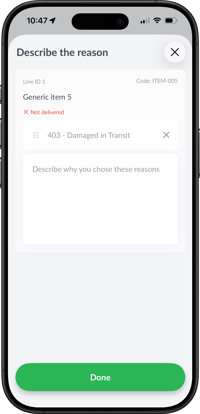
Choose the appropriate code explaining why the item could not be delivered and add any notes if necessary.
-
Tap the green Done button to confirm.
 .
. 
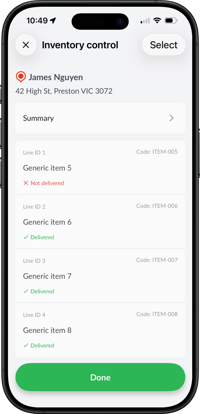
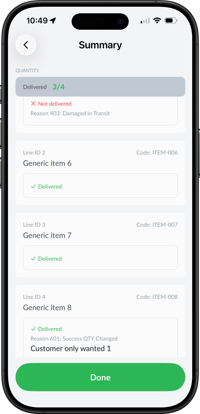
Once completed, the Summary screen will update to show the status of all line items.
Select Done and finalise the job completion to proceed to your next job.
For further assistance, contact support@radaro.com.au