![LOGO-WHITE-1.png]](https://support.radaro.com.au/hs-fs/hubfs/LOGO-WHITE-1.png?width=150&height=50&name=LOGO-WHITE-1.png)
Once you have Started your Shift and completed the Start of Day Checklist (if required) you are ready to start your jobs for the day.
Step 1 - Viewing multi leg jobs
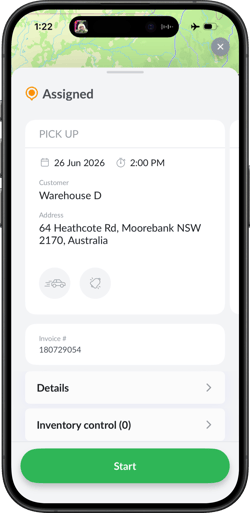
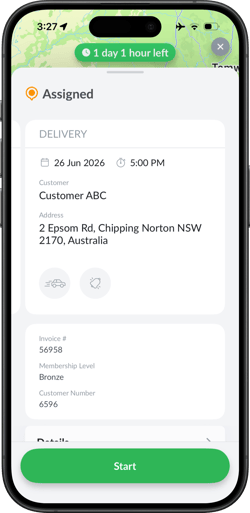
When a job has an initial pick up leg, this is displayed first, and you can swipe left to see the delivery information.
Step 2: Start the Pickup leg
Click Start to proceed to the pickup location.
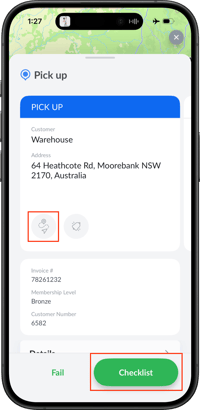
Use the navigation button to push out to your preferred navigation service and return to Radaro when arriving at the pick up location.
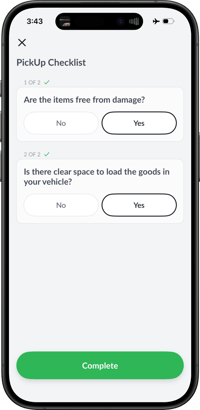
Upon arrival at the pickup location, if Checklists are in place, tap Checklist and answers the questions.
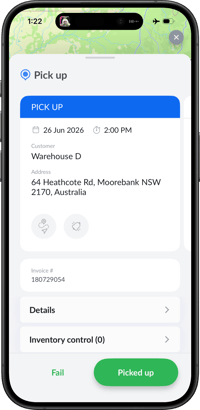
Step 4: Completing a Pick up Job
Once arrived at the pick up location, and having completed if necessary the pick up checklist, tap Picked Up to confirm the details.
Successful job completion
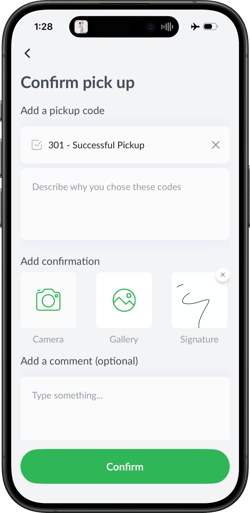
- Select a "Success Code" (which are defined by your manager) and add any further comments about the job and the reason you selected that code.
- Capture an image, this might be the customer letterbox to prove that you were at the correct address, or this might be an image of the installed appliance. (A minimum number of photos may be required to complete the job. Plus a maximum of 30 photos can be added)
- Capture a signature
- Add in any final comments you wish to attach to this job
Once a Pick up is complete you're presented with the option to Pause or Proceed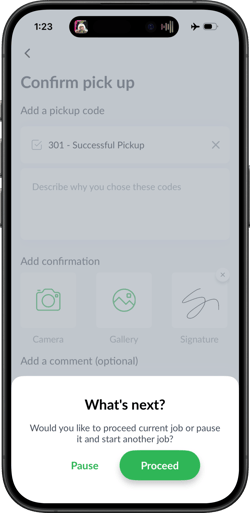 1) Pause this job if you have other Pick up or deliveries to attend to, before delivering the picked up items tot he final delivery address.
The job will remain in a purple "picked up" status until the delivery leg is completed.
2) Proceed, if you wish to go straight to delivery the picked up items.
When ready to complete the delivery leg, select the In Progress button, to resume to job and complete the normal delivery steps.
Failing a Pick Up
If for any reason, you are unable to complete the job, you can "Fail" the job.

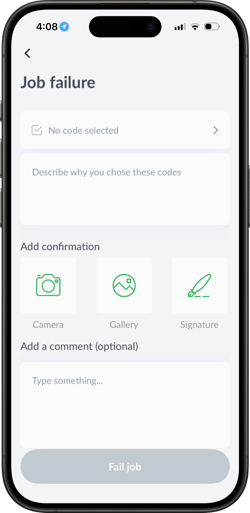
When we "Fail" the job, we are presented with a similar screen to when we are to "Complete" a job though we get to select an "Error" code set up by your manager.
- Select the required "Error Code"
- Add a description as to why the job was failed
- Add in an image which demonstrates why you could not complete the job
- Enter in any final comments
Once you select "Complete Job" the job will move to a "Finished" status in grey and will remain at the bottom of your "Today" jobs list. You are still able to select the job and see what information was previously entered, though cannot be edited.
If you need assistance with completing pick up or delivery jobs in the Radaro Driver App or are interested in learning more about how Radaro can be integrated into your operations, contact your Radaro Account Manager or a member of the Radaro team via support@radaro.com.