![LOGO-WHITE-1.png]](https://support.radaro.com.au/hs-fs/hubfs/LOGO-WHITE-1.png?width=150&height=50&name=LOGO-WHITE-1.png)
Key Steps
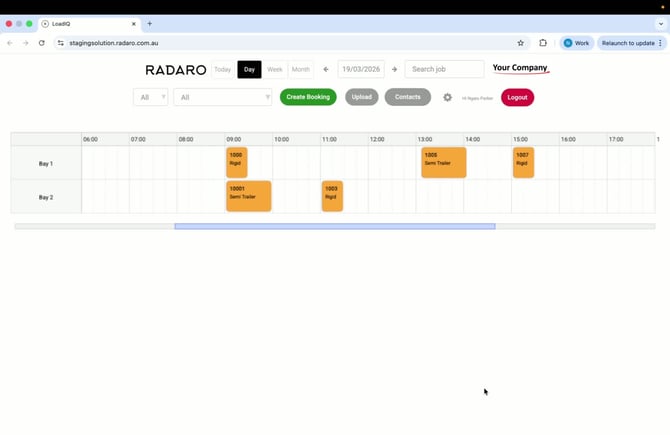
Step 1: Navigate to Contacts
-
Navigate to the Contacts section in LoadIQ. It is below the search bar.
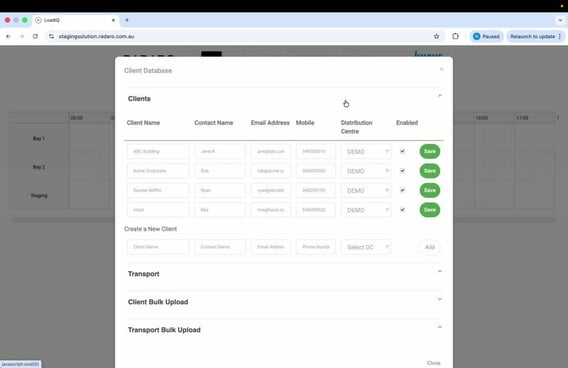
Step 2: Expand the Client List
-
Find the option to expand the client list.
-
Click to view all available clients.
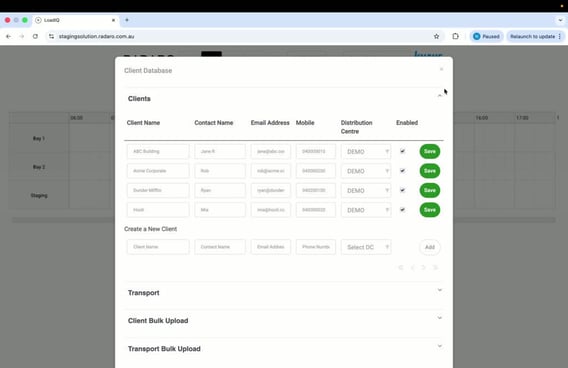
Step 3: Select the Client to Edit
-
Identify the specific client whose information needs to be edited.
-
Click on the client's name to access their details.
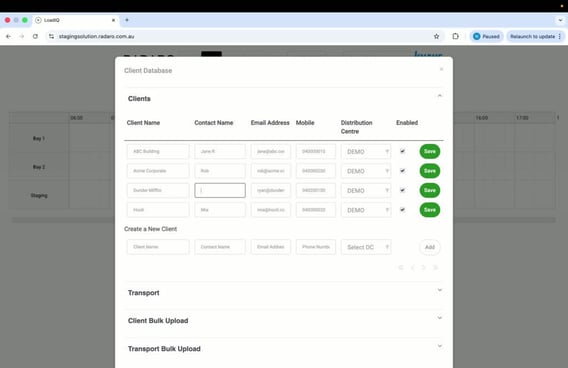
Step 4: Edit Client Information
-
Change the necessary information (e.g., update contact name and email address).
-
Ensure all required fields are filled out correctly.
Step 5: Save Changes
-
Click the “Save” button to apply the changes.
-
Confirm that the information has been updated successfully.
Cautionary Notes
-
Always double-check the information before saving to avoid errors.
-
Ensure you have the necessary permissions to edit client information.
Tips for Efficiency
-
Familiarise yourself with the layout of the Contacts section to speed up navigation.