![LOGO-WHITE-1.png]](https://support.radaro.com.au/hs-fs/hubfs/LOGO-WHITE-1.png?width=150&height=50&name=LOGO-WHITE-1.png)
Key Steps
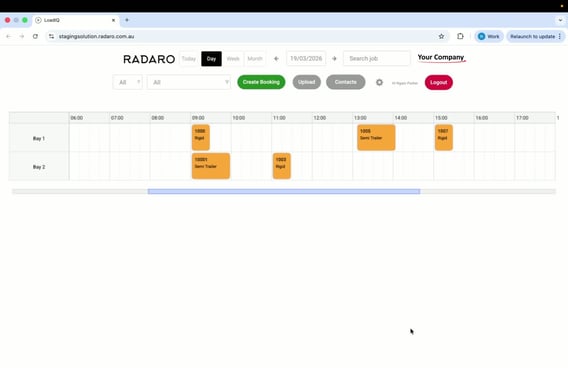
Step 1: Navigate to the Existing Booking
-
Quick edit is available through drag and drop.
-
Click a job and drag to a different time.
-
For recurring bookings, you can update this booking or all future bookings.
-
-
For more complex edits, use the search SAP Order ID functionality to find the booking.
-
Alternatively, on the calendar view click on the exact job you wish to edit.
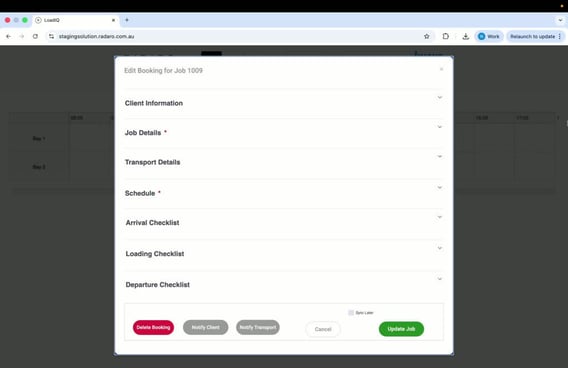
Step 2: Open the Existing Booking
-
Locate the section(s) you want to edit - each section (Client, Job Details, Transport, Schedule, Checklists) can be edited independently.
-
Click on the down arrow to expand the section(s).
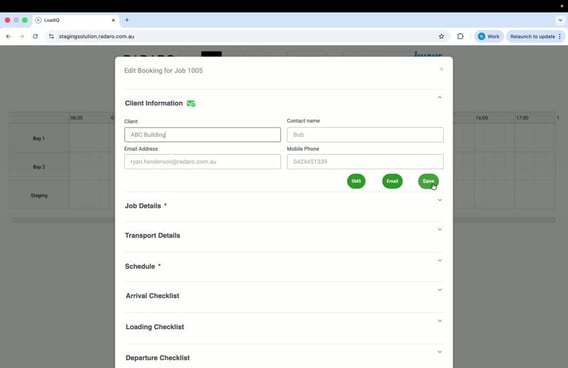
Step 3: Make Changes to the Job
-
Input the necessary changes (e.g., adding a client, adding a transportation company name and vehicle registration #).
-
Ensure all required fields are filled out.
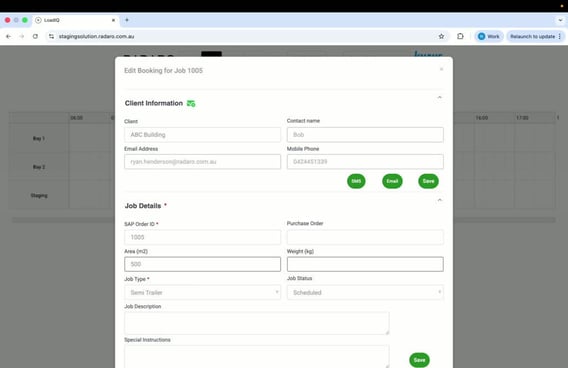
Step 4: Save Changes
-
When you begin editing fields within each section, an option to click “Save” should appear in each section.
-
Click on “Save”.
-
Alternatively, instead of clicking on each “Save” button within each section you can also click on “Update Job” at the bottom to finalise the edits across multiple sections.
Step 5: Confirm Changes
-
Verify that the job information reflects the updated booking changes.
Cautionary Notes
-
Ensure all fields are filled out correctly to avoid errors.
-
Double-check the client or transportation company selected from the drop-down list to ensure accuracy.
Tips for Efficiency
-
Familiarise yourself with the search functionality to quickly locate bookings.
-
Use keyboard shortcuts where possible to speed up the editing process.