![LOGO-WHITE-1.png]](https://support.radaro.com.au/hs-fs/hubfs/LOGO-WHITE-1.png?width=150&height=50&name=LOGO-WHITE-1.png)
Key Steps
Step 1: Navigate to the Existing Booking
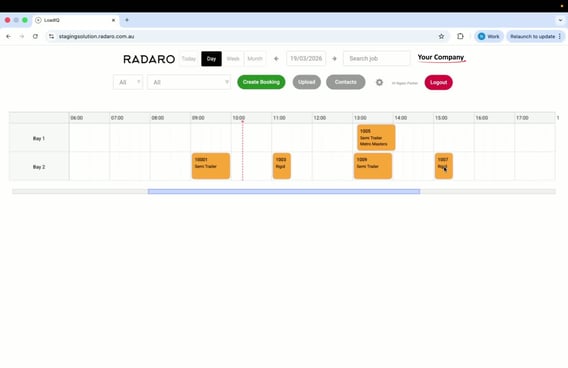
-
Use the search job functionality to find the job you want to delete.
-
Alternatively, click on the exact job that you wish to edit.
Step 2: Access the Delete Booking Option
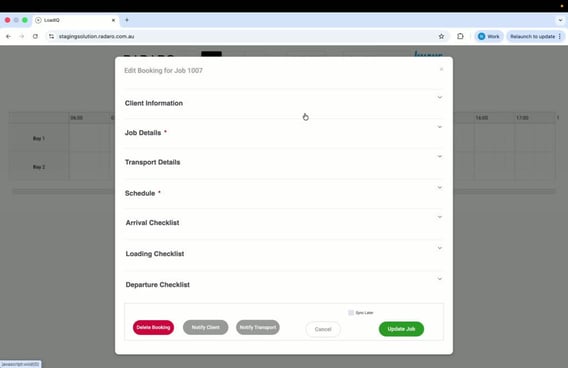
-
Once the job is open, scroll to the bottom of the page.
-
Locate and click on the “Delete Booking” option.
Step 3: Confirm Deletion
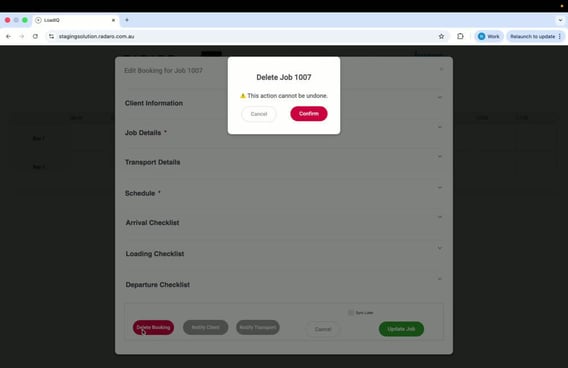
-
Choose deletion scope
-
For single bookings:
-
Confirm deletion
-
Booking is marked as deleted and removed from the calendar
-
-
For recurring bookings:
-
"This event only" - Delete just this one occurrence
-
"This and all future events" - Delete this occurrence and all following ones in the series
-
-
-
A notification will appear indicating that this action cannot be undone.
-
If you are sure you want to proceed, click on “Confirm”.
Step 4: Verify Deletion
-
A green checkbox will appear stating that the booking has been deleted.
-
Close the job box
Step 5: Check Booking Status
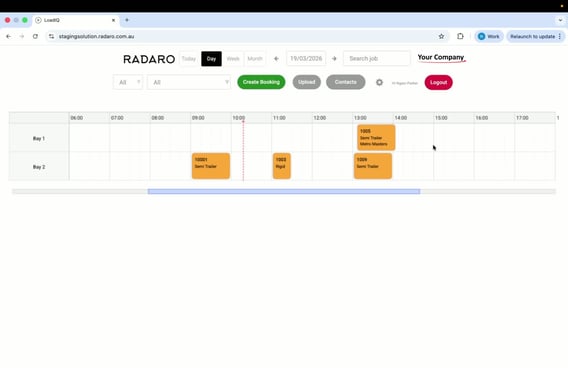
-
To ensure the booking has been deleted, use the search function to look for the job (e.g., SAP order 1007).
-
Confirm that the booking does not appear in the system.
Cautionary Notes
-
Deleting a booking is irreversible; ensure that you have the correct booking before confirming deletion.
-
Deleted bookings are marked as deleted in the system (not permanently removed).
-
Deleted bookings disappear from the calendar immediately.
Tips for Efficiency
-
Familiarise yourself with the search functionality to quickly locate jobs.
-
Always double-check the job details before proceeding with deletion to avoid mistakes.