![LOGO-WHITE-1.png]](https://support.radaro.com.au/hs-fs/hubfs/LOGO-WHITE-1.png?width=150&height=50&name=LOGO-WHITE-1.png)
Transport Profiles consist of:
- Car – comprised of cars and vans
- Truck - includes light truck
- Pedestrian - for high density areas where drivers & service technicians walk or use public transport
The utilisation of Transport Profiles enables enhancements and accuracy in route planning.
To Create a Transport Profile
In the Radaro Management Portal, go to Settings – Add-Ons – Transport Profiles – Add New
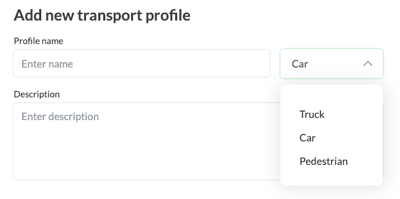 Set a Profile name, vehicle type and add a description.
Depending on the vehicle type chosen, the options available will vary.
Creating a Car Profile
Optional settings include:
- Speed - Set a speed cap to be used to specify the maximum speed of the car
- Route Calculation Mode -
- Fast – route optimised by travel time
- Short – route optimised by travel distance
- Avoid - Specifies a list of routing attributes that can be avoided
- Toll road
- Ferry
- Tunnel
- Dirt road
- Controlled access highway
- U-turns
- Environmental zone
- Ignore route violations - if this setting is active, ad hoc maps data such as road closures will be ignored to prevent jobs being excluded from optimisations.
Creating a Truck Profile
When creating a Truck profile the following optional settings are available in addition to the above Car settings.
- Dimensions - Height, Width and Length (in feet or metres)
- Weight - Weight per Axle and Gross Weight(inKg or lb)
- Shipped hazardous goods - select all from the drop down list that apply which includes the following as an example:
- Explosive
- Gas
- Flammable
- Poison
- Combustible
- Corrosive
- Tunnel category - Restricts the routes to pass only through tunnels of a less strict category
Creating a Pedestrian Profile
There are no required settings for the Pedestrian profile.
Once the Transport Profiles have been created, you can apply the profile to the Driver by updating the Driver Profile and applying the correct Transport Profile to each Driver.