![LOGO-WHITE-1.png]](https://support.radaro.com.au/hs-fs/hubfs/LOGO-WHITE-1.png?width=150&height=50&name=LOGO-WHITE-1.png)
Where Drivers are restricted or have preferences to work in certain areas/zones, Territories can be created and assigned to all or specific working days to ensure jobs are assigned to the appropriate Driver.
Create the Territories
Step 1
On the Radaro Management Portal, go to Settings - Add-ons and click on Territories
Click the arrow to see your existing Territories and Add New to add another.
Step 2
A new pop-up screen will appear for you to enter the necessary details.
Enter the nam of the Territory you're creating.
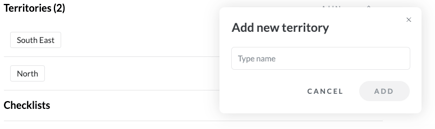
Once all the details are entered, click the Add button (it will remain greyed out if the minimum details are not provided).
Territory Options
To accommodate the flexible working styles of many organisations, Territories can be configured to suit various environments.
Territory Types
Territories can be set as:
- Exclusive
- The driver is assigned one territory only and only jobs with this territory will be assigned to the Driver.
- Preferred
- The driver is assigned one territory only. However, If there is available time or capacity, they can also be assigned jobs outside their preferred territory (including jobs with no territory assigned).
- Prioritised
- A Driver can be assigned multiple territories, each with a priority level (1 = highest priority, 5 = lowest).
- The driver is restricted to these assigned territories and cannot be assigned jobs outside the specified territories.
- Multiple territories can share the same priority level.
- This configuration helps ensure broader job coverage allowing a Driver to primarily work in their preferred zone, however with the ability to have additional jobs where capacity allows.
Territory Days
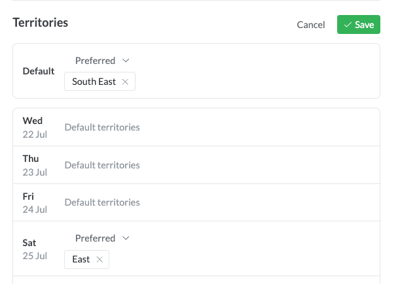
A Territory for a Driver can be set as a default and applied to all working days, or alternatively, if a Driver works different areas on different days, this can be specified to assist automate job allocation.
Assigning Territories to Drivers
To assign a Territory to a driver, simply go to the Driver profile, Settings - Edit profile
Scroll down to the Territories section and then select Edit
Step 1
Set the Default Territory
Click the + icon
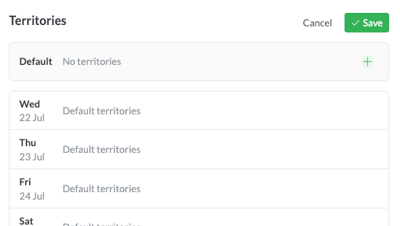
Select the Territory type - Exclusive, Preferred or Prioritised
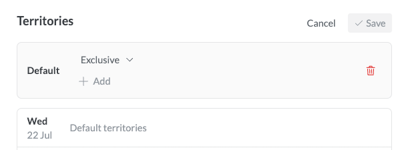
Select Add to choose from the created Territories.
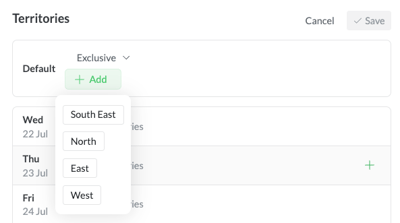
Then click the green Save button.
Step 2
Set specific Day Territories
If you are setting Territories for specific days of the week, repeat the process for each day of the week as desired.
Adding Territories to Jobs
Now that you have created and assigned Territories, you can them to a jobs in Radaro.
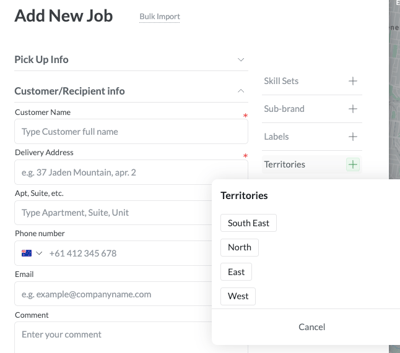
a) Manually adding a job - When you add a job, you will notice a button on the right-hand side labelled “Territories”. Simply tap this and choose the Territory you would like to apply to the job.
b) Bulk Job creation via csv upload - Enter the Territory ID number in the Territory column of your csv file to enable the Territory to be allocated via the upload process.
c) Creating jobs via API - if you create new Territories you will need to advise your IT team so they can update the coding accordingly to accept and apply the new Territory.