![LOGO-WHITE-1.png]](https://support.radaro.com.au/hs-fs/hubfs/LOGO-WHITE-1.png?width=150&height=50&name=LOGO-WHITE-1.png)
Key Steps
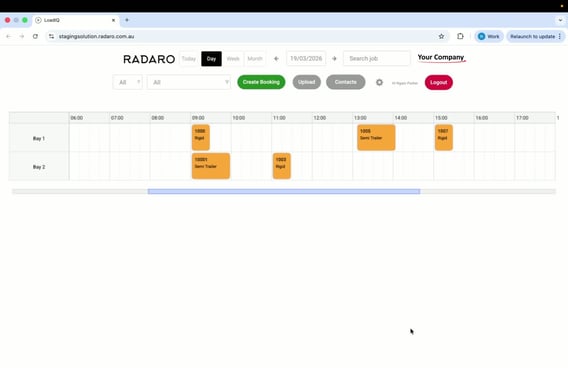
Step 1: Access “Settings”
-
Locate and click on the “Settings” icon (gear wheel) in LoadIQ.
-
This will open the settings menu.
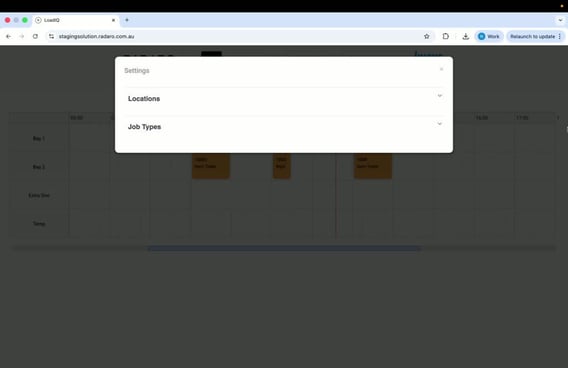
Step 2: Navigate to “Job Types”
-
Scroll down to find the “Job Types” section in the settings menu.
-
Expand the “Job Types” section to view existing job types.
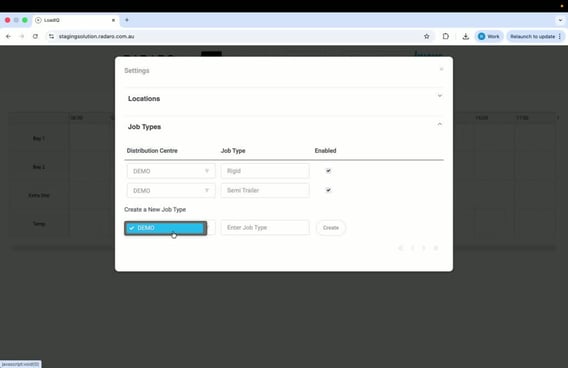
Step 3: Select Distribution Centre and Enter New Job Type
-
Identify the relevant distribution centre (e.g., Demo Distribution Centre).
-
Click on the distribution centre to select it.
-
In the “Job Type” field, enter the name of the new job type (e.g., Combination).
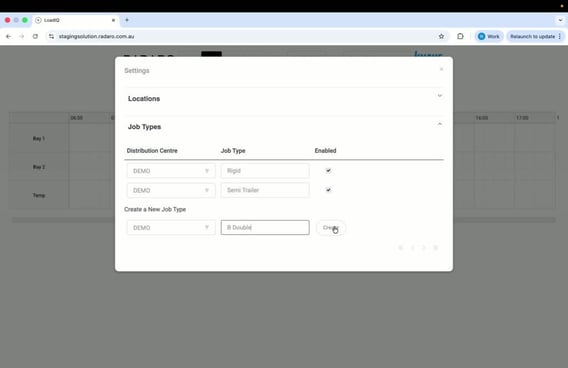
Step 4: Create Job Type
-
Click the “Create” button to finalise the addition of the new job type.
Step 5: Verify Job Types
-
Locate the job type
-
Confirm that the new job type is now listed among the available job types for the distribution centre and that the check box is selected under “Enabled”.
Cautionary Notes
-
Ensure you have the necessary permissions to access and modify job types in LoadIQ.
-
Double-check the job type name for accuracy before creating it to avoid duplicates or errors.
Tips for Efficiency
-
Familiarise yourself with the existing job types to avoid creating unnecessary duplicates.
-
Keep a list of job types that are frequently used to streamline the creation process.