![LOGO-WHITE-1.png]](https://support.radaro.com.au/hs-fs/hubfs/LOGO-WHITE-1.png?width=150&height=50&name=LOGO-WHITE-1.png)
Key Steps
Step 1: Access Contacts
-
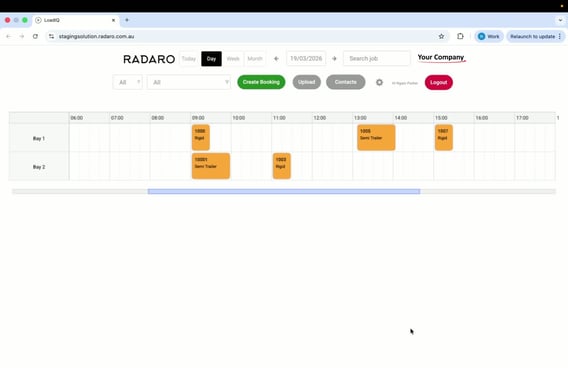
Navigate to the Contacts section in Load IQ. It is below the search bar
Step 2: Choose Client Creation Method
-
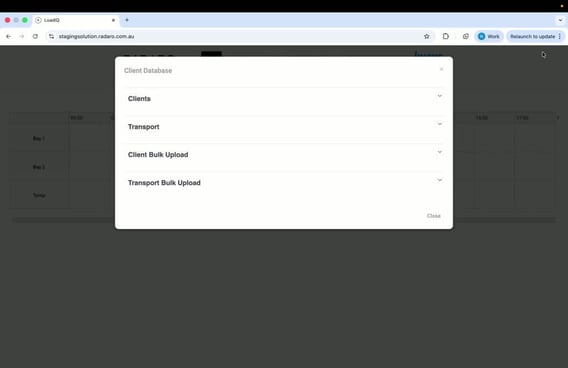
You will see two relevant options:
-
Client
-
Client Bulk Upload
-
Step 3: Create a Single Client
-
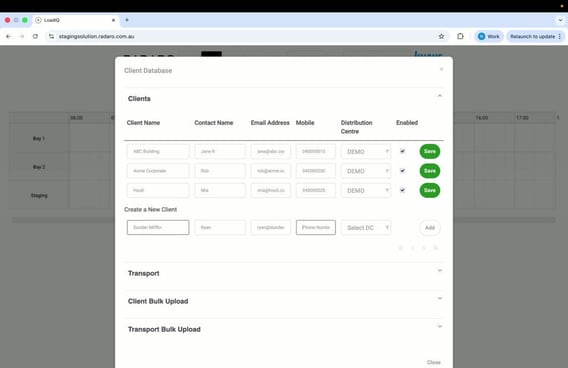
Click on Clients to expand the view existing clients.
-
To add a new client, start typing in the provided field.
-
Fill in all the required fields for the new client
-
For clients serviced across multiple distribution centre locations you can select multiple distribution centres.
Step 4: Finalise Client Creation
-
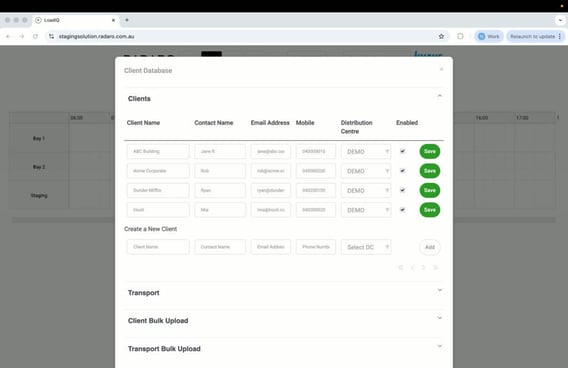
Click on “Add” to add the new client to the client list. The new client will be immediately available for use.
Step 5: Create a Bulk Upload Clients
-
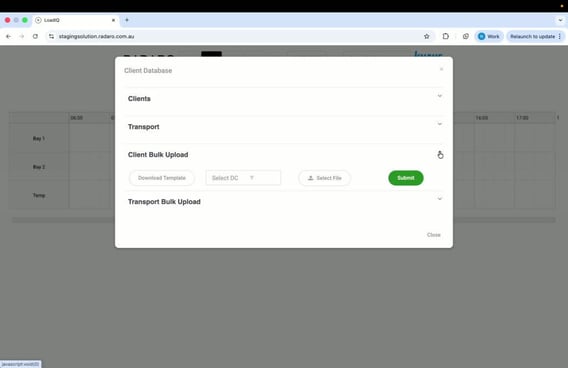
For bulk uploads, select Client Bulk Upload and expand the option.
Step 6: Download Template
-
Click on the option to Download Template for bulk upload.
-
The template will require the following four pieces of information:
-
Client Name
-
Client Contact Name
-
Phone Number
-
Email Address
-
Step 7: Fill in Template and Save File
Step 8: Select Distribution Centre
-
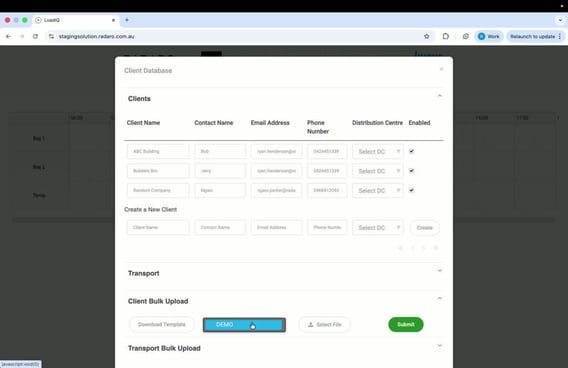
Choose the appropriate distribution centre (e.g., Demo).
-
If you are using Client Bulk Upload, for clients serviced across multiple distribution centre locations (i.e., Metricon) you will have to create separate individual line items in each distribution centre file.
-
Alternatively, for clients serviced across multiple distribution centre locations, you can use the single client creation option and select all relevant distribution centres.
Step 9: Upload File
-
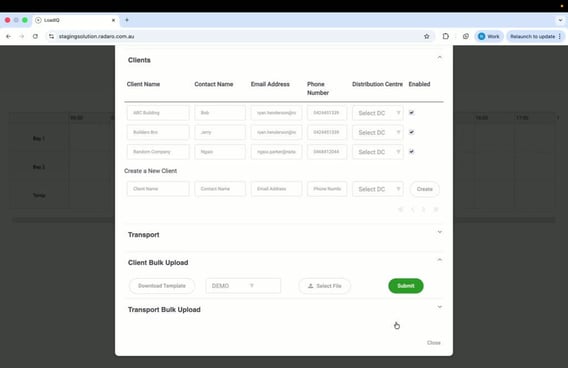
Click on “Select a File” to upload your completed template.
-
Hit “Submit” to upload all new clients to the database.
Cautionary Notes
-
Ensure all required fields are filled out correctly to avoid errors during client creation.
-
Double-check the information in the Excel template before uploading to prevent data inaccuracies.
-
For clients that are serviced across multiple distribution centre locations, you will either need to:
-
Create clients using the single client creation option and select all relevant distribution centres
-
OR use the Client Bulk Creation file upload with separate individual line items in each distribution centre file.
-
Tips for Efficiency
-
Keep a backup of your Excel template for future uploads.