![LOGO-WHITE-1.png]](https://support.radaro.com.au/hs-fs/hubfs/LOGO-WHITE-1.png?width=150&height=50&name=LOGO-WHITE-1.png)
Key Steps
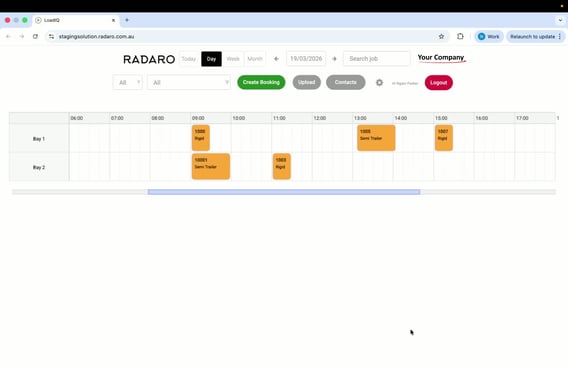
Step 1: Access Create Booking
-
Locate the green icon labeled Create Booking.
-
Click on the icon to navigate to the Create Booking page.
Step 2: Enter Booking Information
-
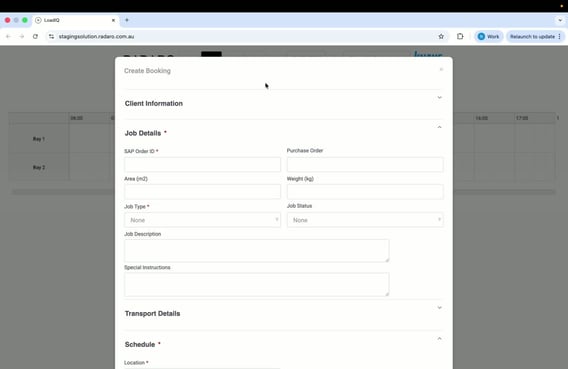
Enter in the SAP Order ID.
-
Select the job type (e.g., Rigid).
-
Choose a location (e.g., Bay 1).
-
Select a date (e.g., 19th).
-
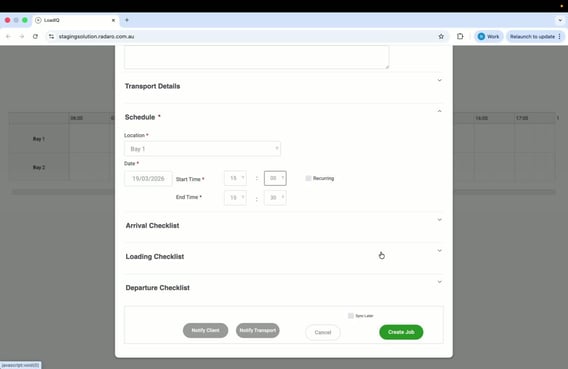
Set the time for the job (e.g., 3 p.m.).
-
Select “Recurring” checkbox and then frequency if applicable.
-
The job duration will automatically default to preconfigured job lengths based on loading bay and truck type. However, the job duration can be easily adjusted +/- by the individual creating or editing the job.
Note: The booking information required to create an initial booking is minimal; additional order information can either be manually added by Administrators and Schedulers/Coordinators or auto-synced from an SAP file upload.
Step 3: Create the Job
-
Click on Create Job to finalise the booking.
Step 4: Alternative Booking Method via Calendar
-
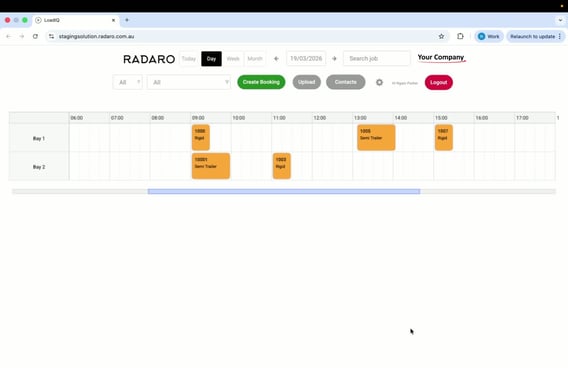
Go to the calendar view.
-
Select the desired time slot start time (e.g., 1 p.m. in Bay 2).
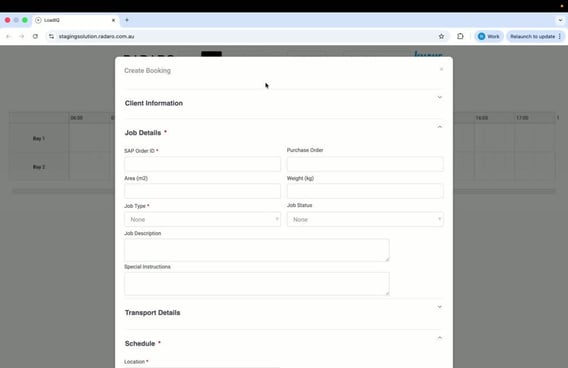
Step 5: Fill in Booking Details from Calendar
-
Enter in the SAP Order ID.
-
Select the job type (e.g., semi-trailer).
-
Confirm the location (e.g., Bay 2).
-
The job duration will automatically default to preconfigured job lengths based on loading bay and truck type. However, the job duration can be easily adjusted +/- by the individual creating or editing the job.
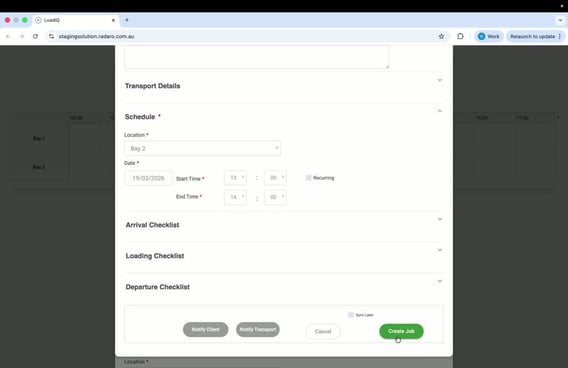
Step 6: Finalise the Booking from Calendar
-
Click on Create Job to complete the booking.
-
Verify the new booking appears on the calendar.
Cautionary Notes
-
Ensure all required fields are filled out correctly to avoid booking errors.
-
Double-check the date and time to prevent scheduling conflicts.
Tips for Efficiency
-
Familiarise yourself with the job types and locations to speed up the booking process.
-
Use the calendar method for quick access to available time slots.