![LOGO-WHITE-1.png]](https://support.radaro.com.au/hs-fs/hubfs/LOGO-WHITE-1.png?width=150&height=50&name=LOGO-WHITE-1.png)
Key Steps
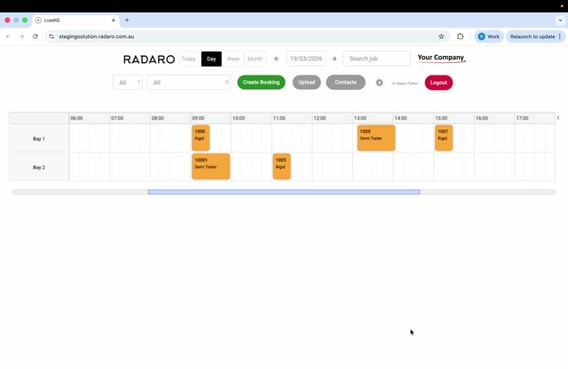
Step 1: Access Settings
-
Click on the “Settings” widget once.
-
Navigate to the “Locations” section.
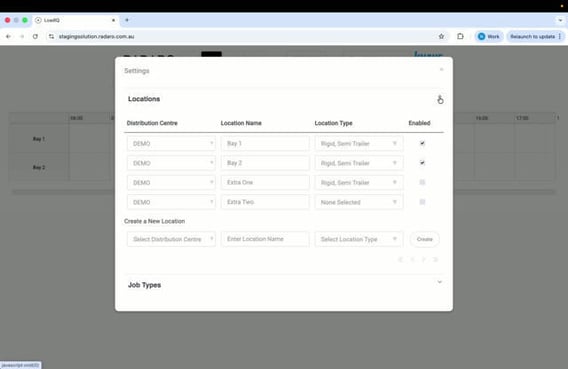
Step 2: Expand Locations
-
Expand the locations to view existing configurations.
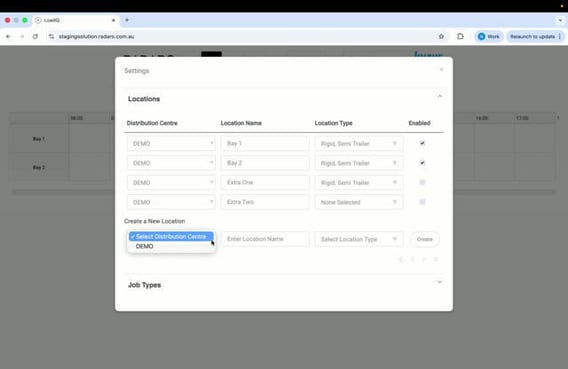
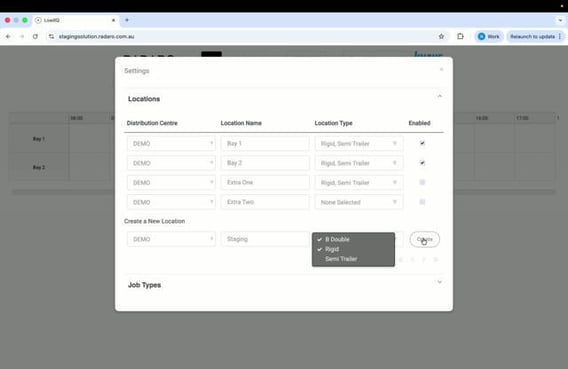
Step 3: Set Up a New Location
-
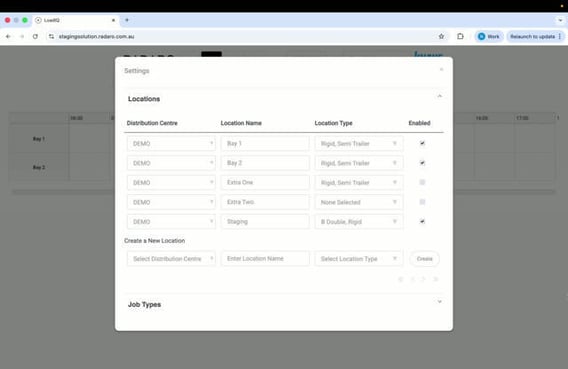
Select the distribution centre (e.g., “DEMO”).
-
Enter the new location name (e.g., “Staging”).
-
Choose the location type (e.g., “B Double, Rigid”).
-
Click “Create” to finalise the setup.
Step 4: Confirm New Location
-
Verify that the new staging location has been enabled.
Step 5: Refresh Calendar
-
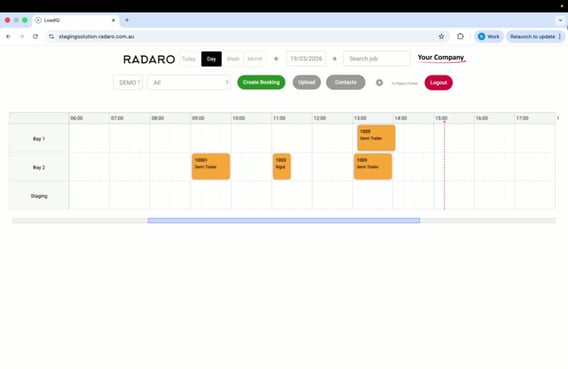
Close the configuration screen.
-
Calendar should automatically refresh.
-
Check that the new staging bay is now available at the location.
Cautionary Notes
-
Ensure that you have the necessary permissions to create and configure locations.
-
Double-check the location name and type before finalising the setup to avoid errors.
Tips for Efficiency
-
Keep a record of all location names and types to streamline future configurations.
-
Use screenshots for documentation to assist in training new team members.